Feature
Engineering Change Orders That Don't Slow Your Team Down
Track every ECO on a Kanban board from request to approval. Turn on enforcement when you're ready to lock project data to active assignees. Reviewers work from a real diff, not a memory of what changed. And approval versions every affected BOM automatically.
Enforcement
Optional
Lock project data to active assignees, org-wide
Review
Per-line diff
Approve or reject each change with a reason
On approval
Auto-versioned
Every affected BOM gets a new revision
Every ECO, Tracked on One Board
Change orders move across four columns: Requested, In Progress, In Review, and Approved, with a Show Archived toggle for anything closed out. Each card shows urgency and status at a glance, including when an ECO has changes requested and needs attention back in progress.
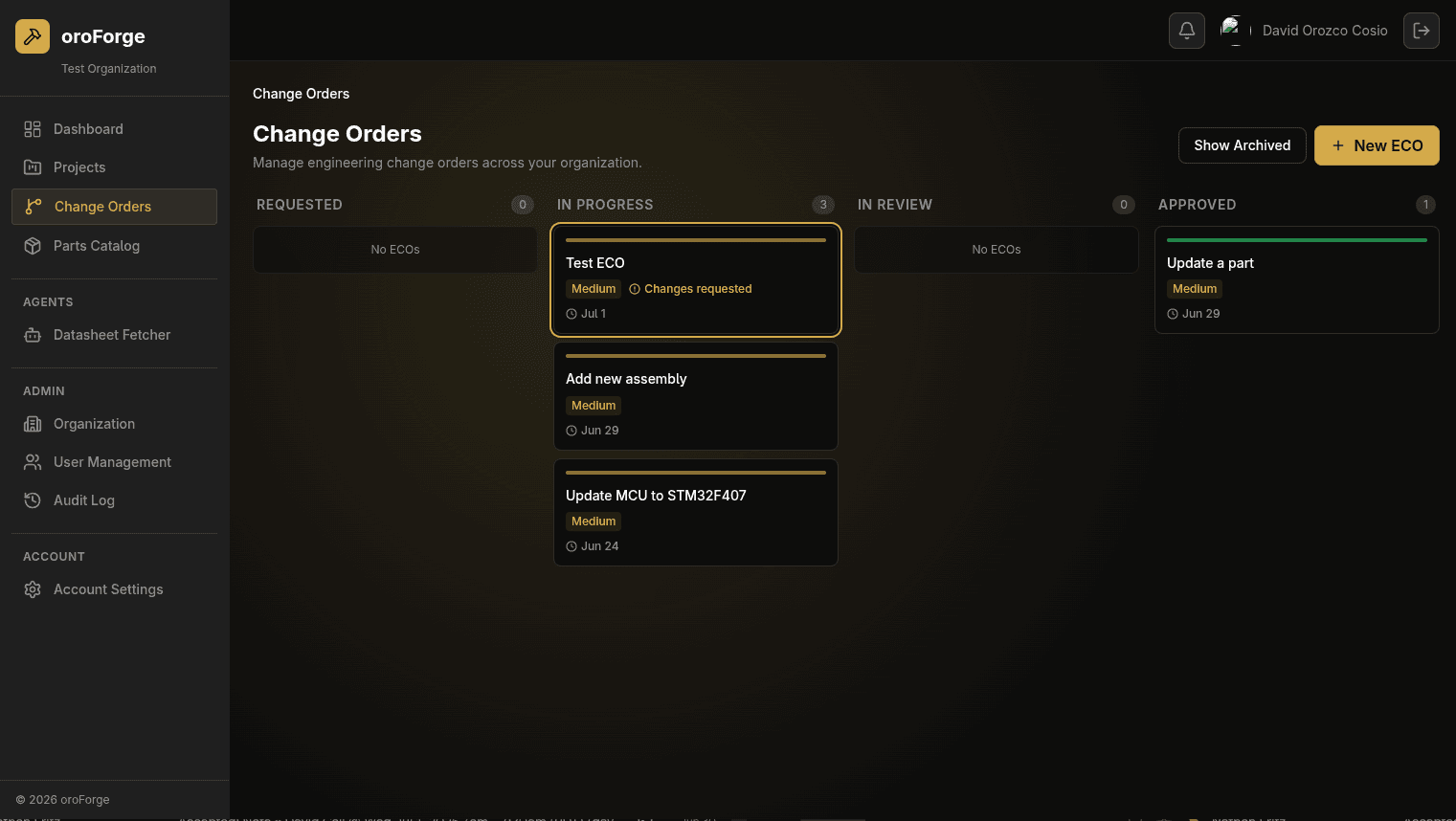
Open an ECO in Seconds, Usable Any Time
ECOs are always available, whether or not enforcement is turned on, so you can start tracking a change the moment you know it's coming. Pick a project, describe why the change is needed, set urgency and a due date, then add assignees and reviewers from your org.
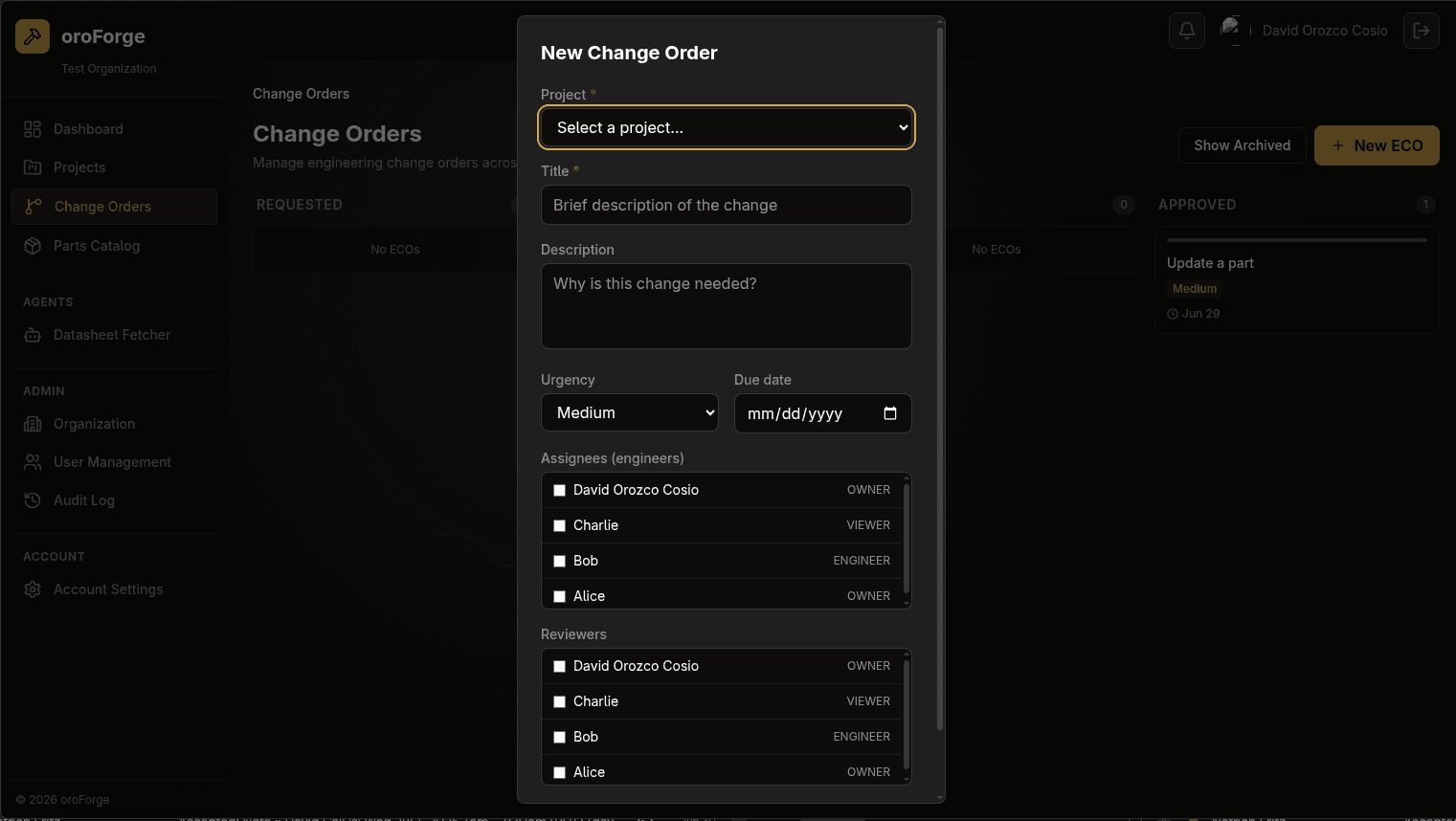
Turn On Enforcement When You're Ready
Flip the ECO Enforcement switch in Organization settings and project data locks down org-wide: BOMs, parts catalog entries, and other project-scoped data can't be edited unless the person making the change is an assignee on an active ECO for that project. It's off by default, so early-stage teams aren't forced into formal change control before they need it.
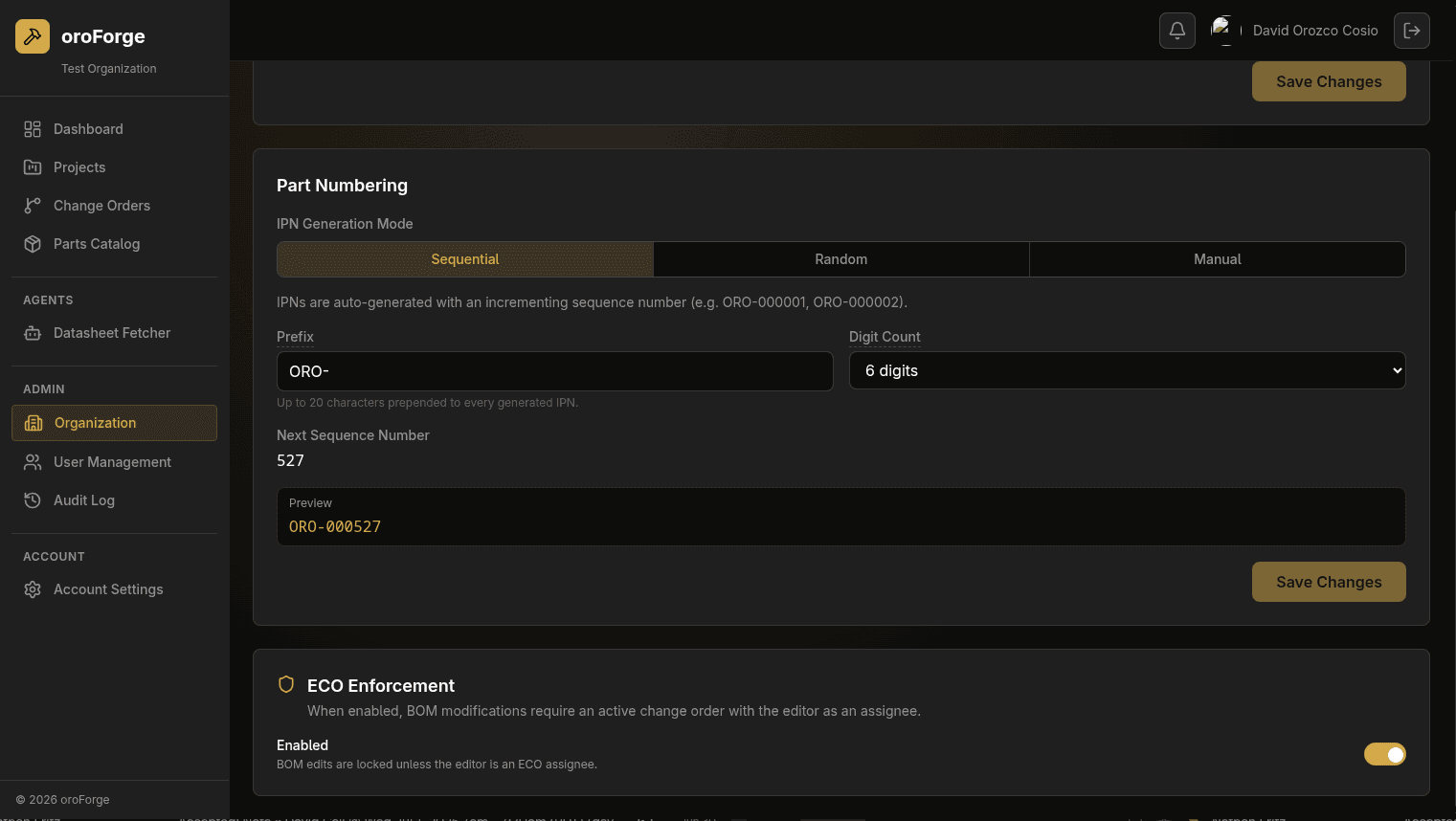
Reviewers Work From a Real Diff
When an ECO comes up for review, reviewers see every changed line, not a summary of it. The Request Changes view lets a reviewer approve or reject each line individually, with an optional reason attached to each rejection. At least one rejection sends the ECO back to In Progress so assignees know exactly which lines to fix.
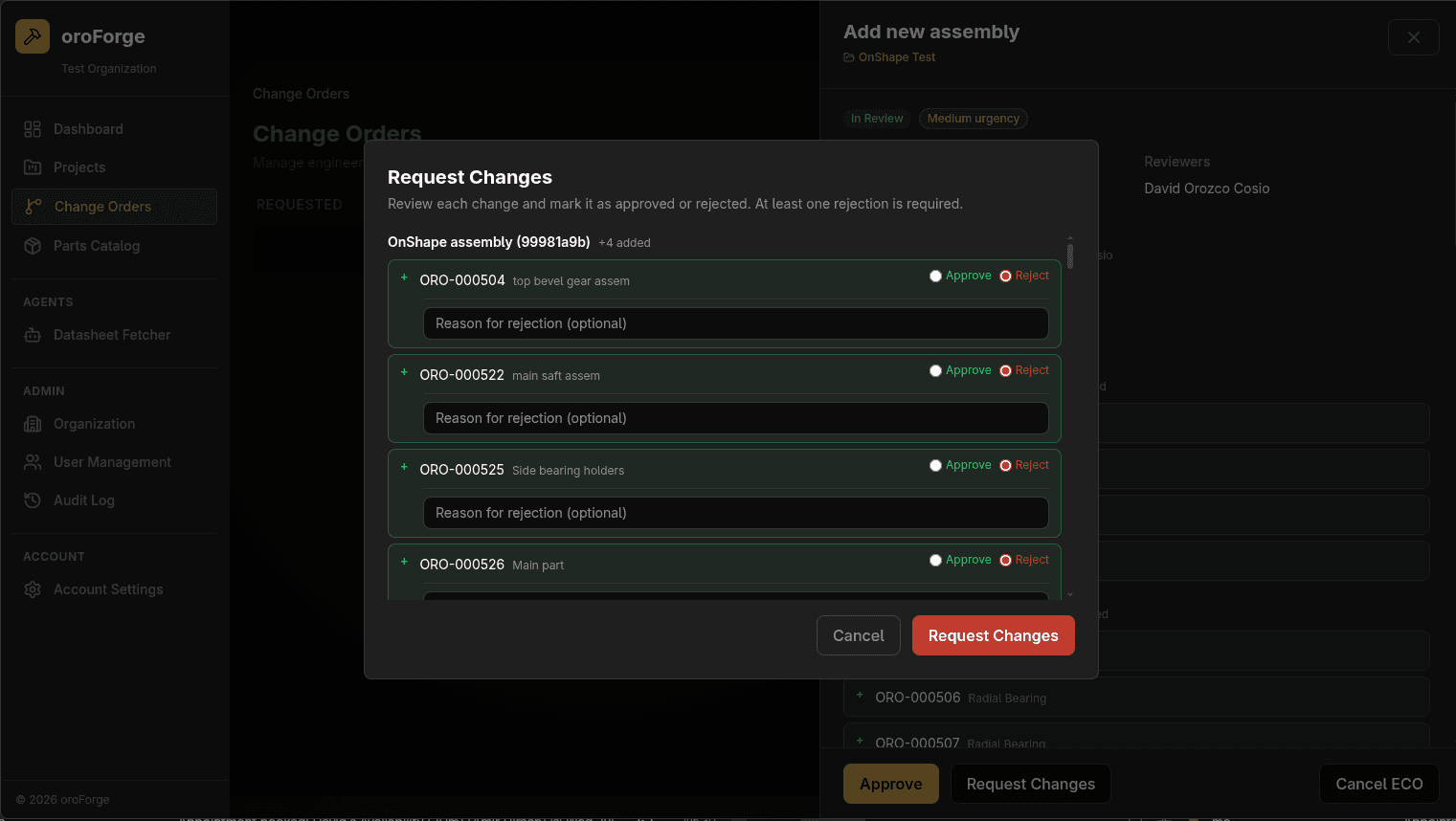
Approval Versions the BOM Automatically
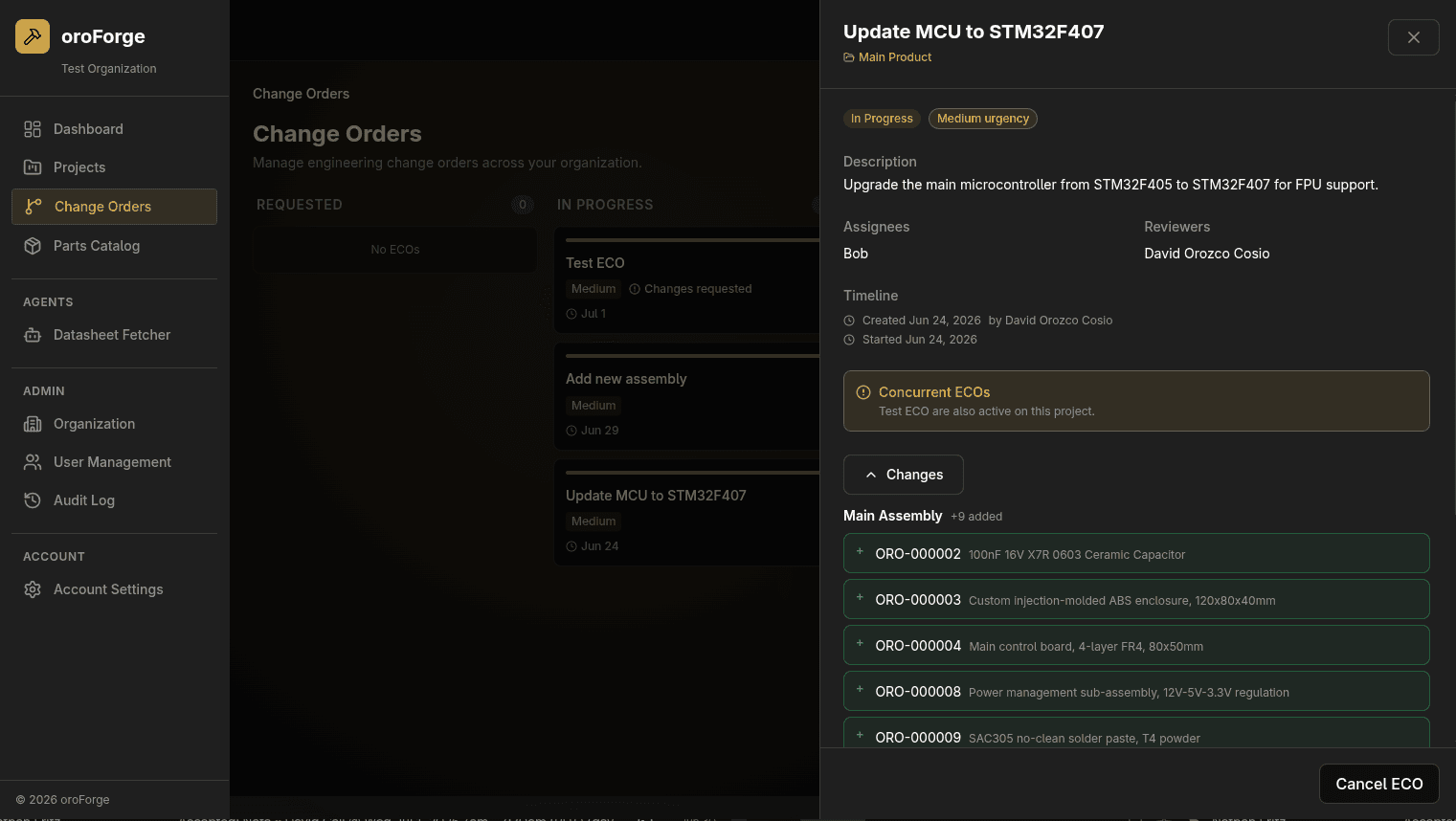
The ECO detail view keeps status, urgency, assignees, reviewers, and a full timeline in one place, plus an expandable diff of every affected assembly. It also flags when another ECO is active on the same project, so reviewers have that context going in. Approve the ECO and every BOM it touches is versioned automatically as part of that same action, no separate save-revision step required.
Nobody Has to Poll the Board
Assignees, reviewers, and the ECO owner all get email notifications as an ECO moves through its lifecycle, so the people who need to act know when it's their turn without checking in on Change Orders every day.
At a glance
- Kanban board: Requested, In Progress, In Review, Approved, with archiving
- ECOs usable any time, with or without enforcement turned on
- Org-wide enforcement toggle that locks project data to active ECO assignees
- Separate assignee and reviewer roles per ECO
- Per-line diff review with individual approve/reject and rejection reasons
- Concurrent-ECO warning when another change order is active on the same project
- Automatic BOM versioning on ECO approval
- Email notifications to assignees, reviewers, and the ECO owner
Frequently asked questions
Do I have to turn on ECO enforcement to use change orders?
No. ECOs are usable at any time, whether or not enforcement is on. You can open a change order to track and review a set of edits without it restricting anyone's ability to edit project data.
What does turning on ECO enforcement actually do?
It locks project data: BOMs, parts catalog entries, and other project-scoped data can't be edited unless the person making the change is an assignee on an active ECO for that project. It's an organization-level setting, so you turn it on when your team is ready for that level of control.
How does the reviewer see what actually changed?
The ECO detail view includes an expandable diff of every affected item, grouped by assembly, with additions and modifications marked line by line. Reviewers work from that diff directly instead of comparing exports by hand.
What happens if a reviewer rejects part of an ECO?
Reviewers approve or reject each changed line individually in the Request Changes view, with an optional reason per rejected line. At least one rejection is required to send an ECO back, and it returns to In Progress so the assignees can address the specific lines called out.
Does approving an ECO update the BOM automatically?
Yes. Approving an ECO automatically creates a new version of every BOM it affects, so the approved state is captured as a revision without a separate manual save step.
Who gets notified as an ECO moves through review?
Assignees, reviewers, and the ECO owner all receive email notifications as the ECO progresses, so nobody has to poll the board to know when it's their turn to act.
Related reading:
Try change control built for hardware startups
Free plan available. Team plan at $50/month for 10 seats. No sales call required.
No credit card required · No implementation consultant