Feature
BOM Management, Built for How Hardware Actually Gets Built
One project, as many BOMs as your product needs. Sub-BOMs nest themselves on import. Every revision is a full snapshot you can revert to. Every change is logged. And when your CM needs a package, it's an export, not an afternoon.
Sub-BOM creation
Automatic
AI nests structure from your import
Revision history
Full snapshots
Every rev saved, one-click revert
Change tracking
Every action
Edits, locks, and exports all logged
One Project, As Many BOMs As You Need
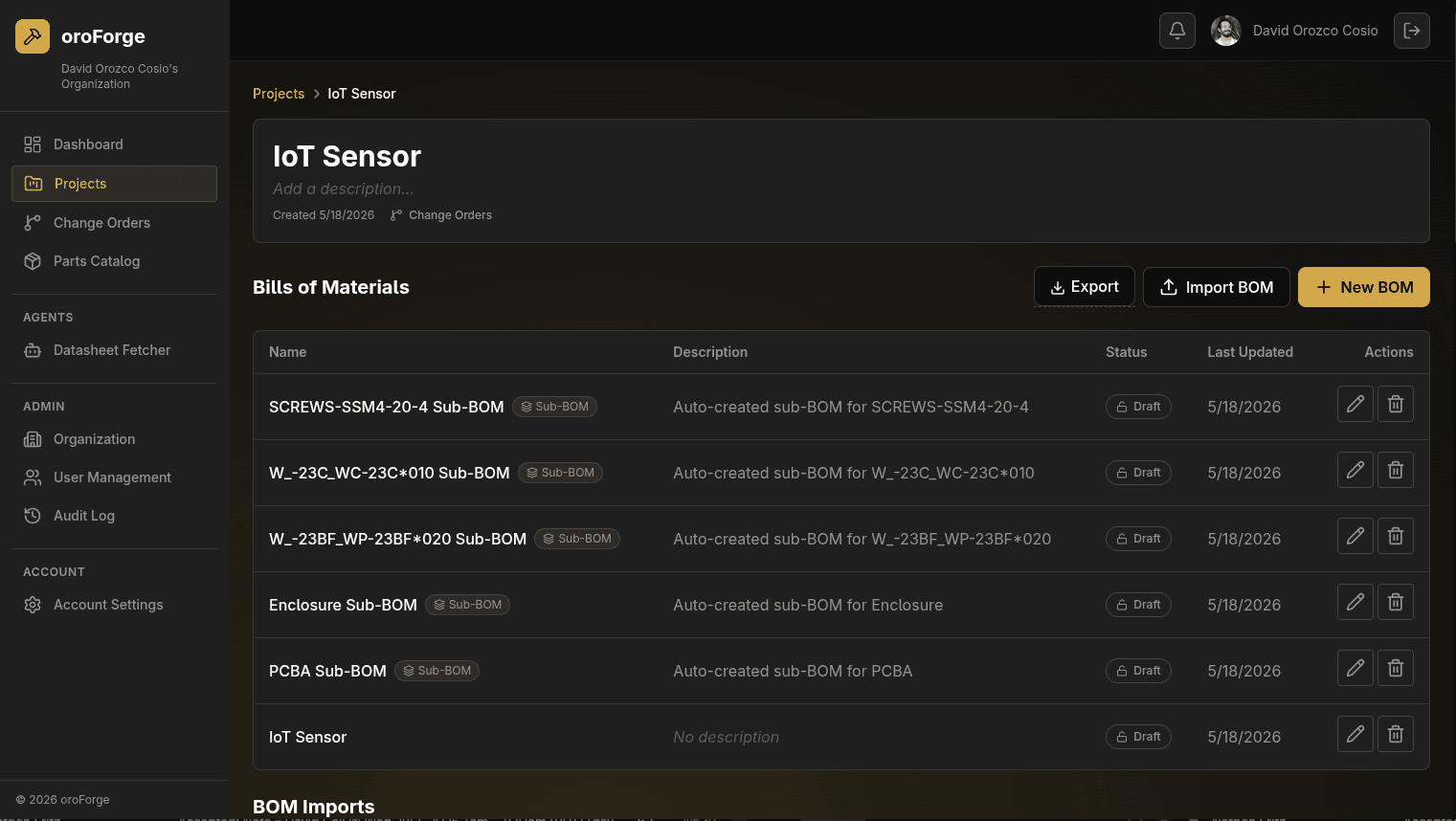
A hardware product usually isn't one BOM: it's a top-level assembly plus every subassembly underneath it. A project in oroForge holds all of them together, organized however fits your product. In this example, the “IoT Sensor” project has its own top-level BOM plus dedicated sub-BOMs for the PCBA, the enclosure, and even individual fastener groups.
Every Part, Tracked and Costed Automatically
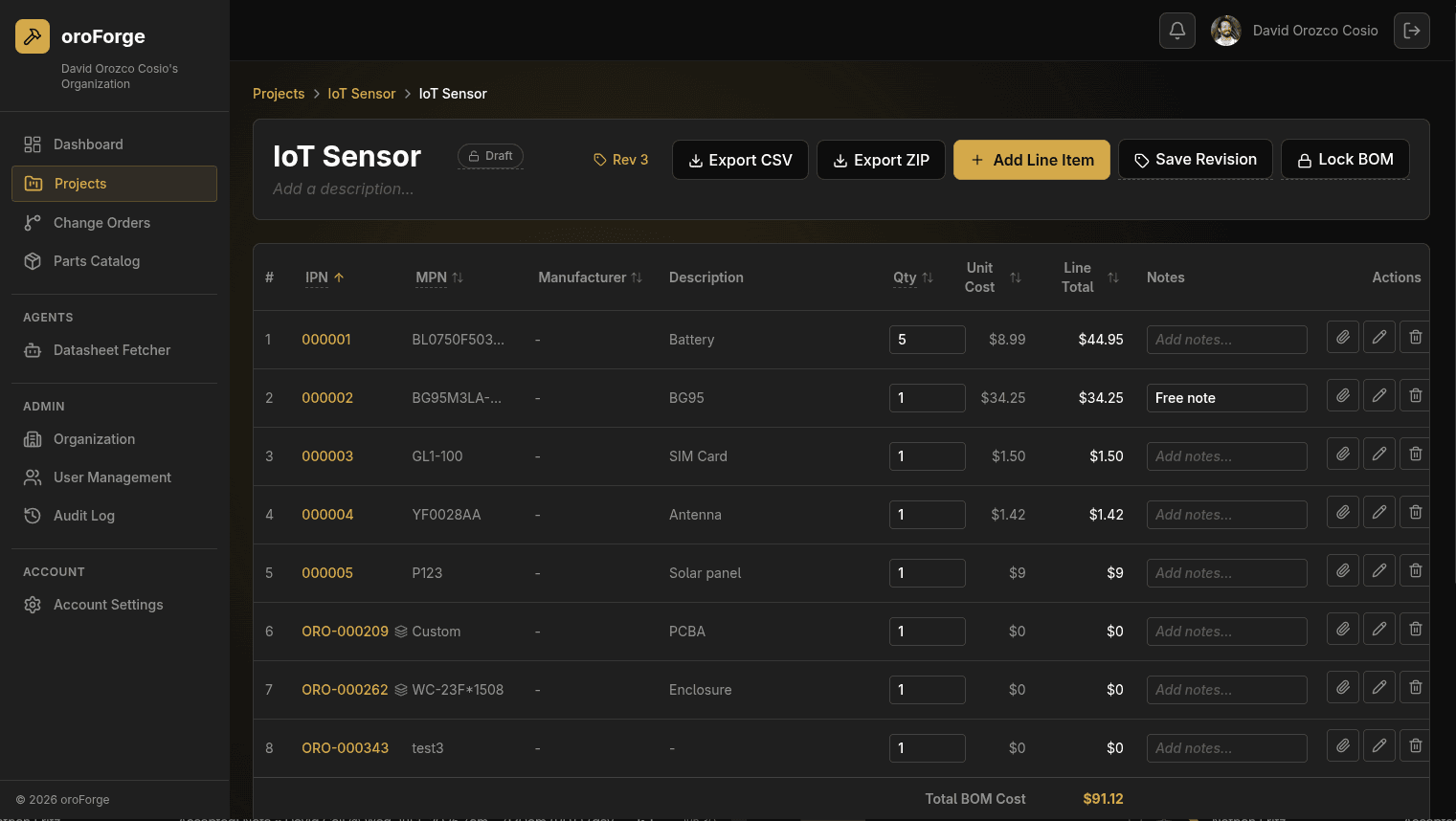
Each BOM is a live table, not a static export: internal part number, manufacturer part number, manufacturer, description, quantity, and cost, all in one place. Quantities and notes are editable inline, you can attach a file directly to any line item, and the total BOM cost rolls up automatically as you edit. Line items that are themselves subassemblies are visually marked and linked to their own sub-BOM.
Import Once, Let AI Nest the Structure
Real BOM data doesn't arrive clean. oroForge imports spreadsheets in multiple formats, collections of component datasheets, and STEP files; bundle them together in a ZIP or upload them one at a time. An AI review step during import automatically nests subassemblies into their own sub-BOMs instead of leaving everything flat. STEP files often already carry sub-assembly structure from your CAD tool, and oroForge reads that structure directly rather than asking you to redefine it by hand.
Full Revision History, One-Click Revert
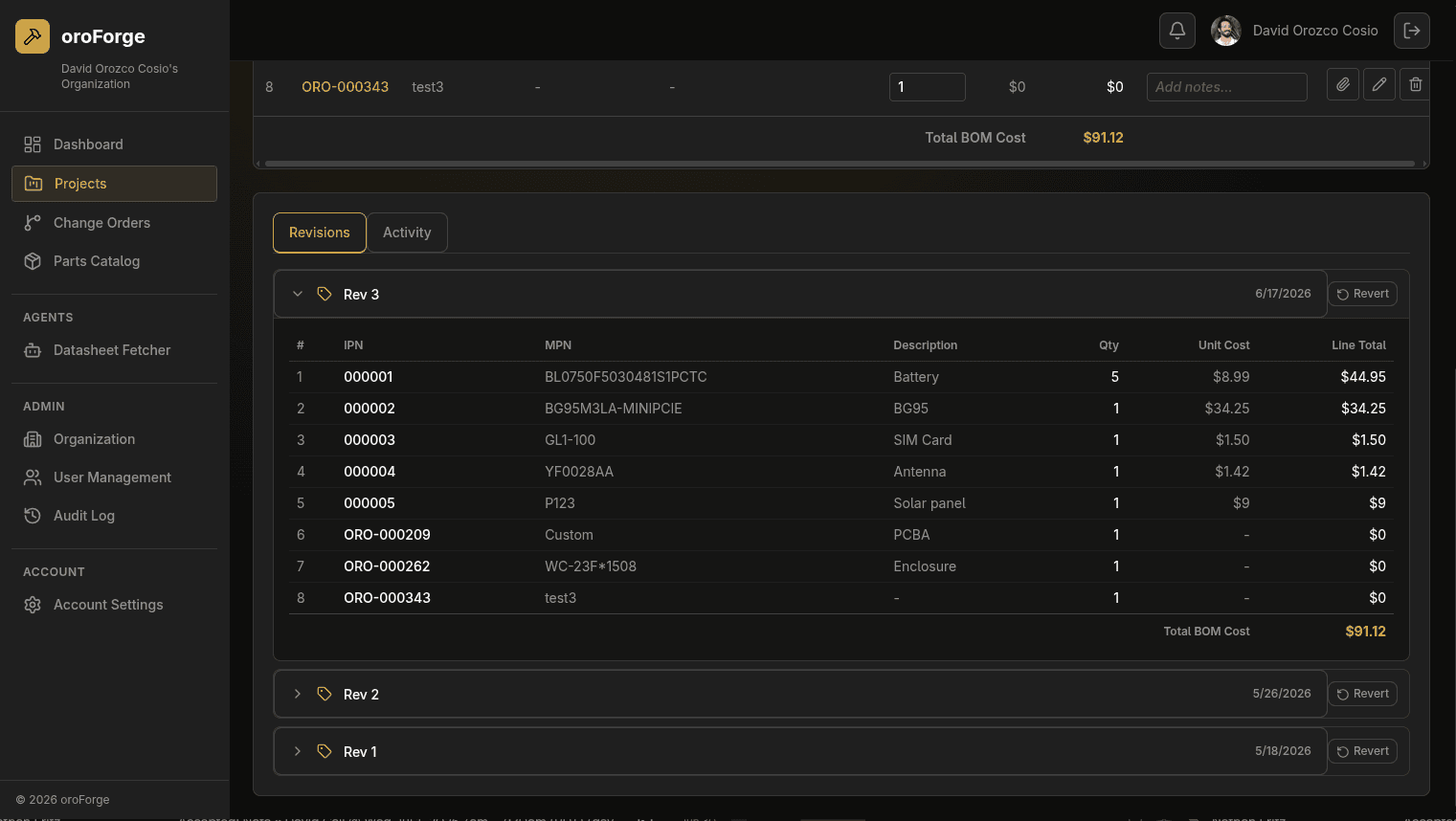
Every time you save a revision, oroForge keeps a complete, dated snapshot of that BOM: not a diff you have to reconstruct, the actual before-and-after state. Need to know what Rev 2 looked like before last week's change? Open it. Need to undo a bad edit? Revert, in one click.
Lock a BOM Without Opening a Full ECO
Not every freeze needs to be a formal change order. Locking a BOM prevents anyone from making changes to it: a lightweight step an engineer or technical PM can take before reaching for full ECO change control. It's deliberately a step before that process, not a replacement for it, and both locking and unlocking a BOM are recorded in the activity log along with everything else.
A Complete Audit Trail
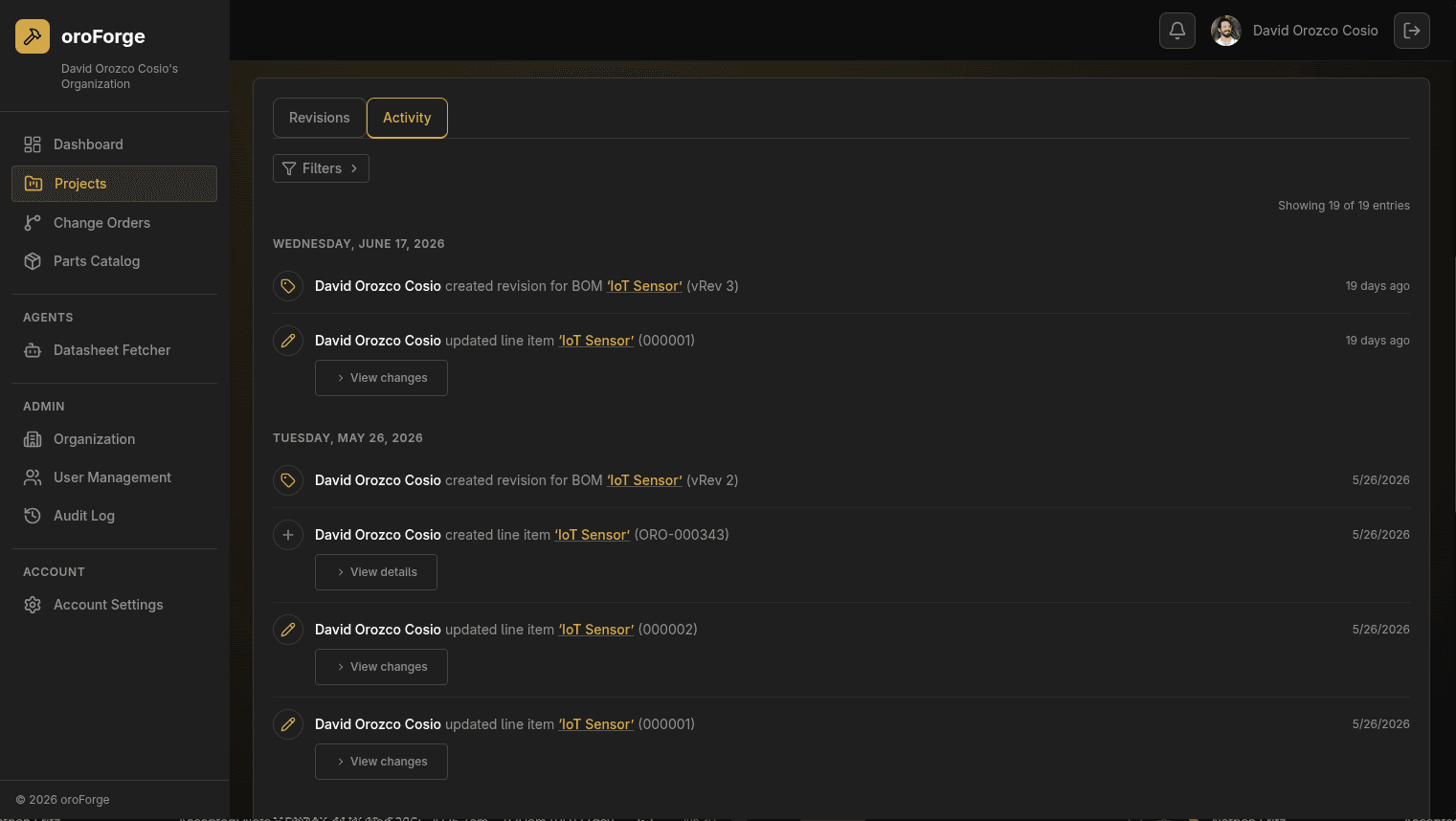
Every line-item edit, every saved revision, every lock and unlock is recorded with who made the change and when; entries are grouped by date, with a drill-down into the specific before-and-after details of any change. No more reconstructing what happened from a Slack thread.
Export a Clean Package, Every Time
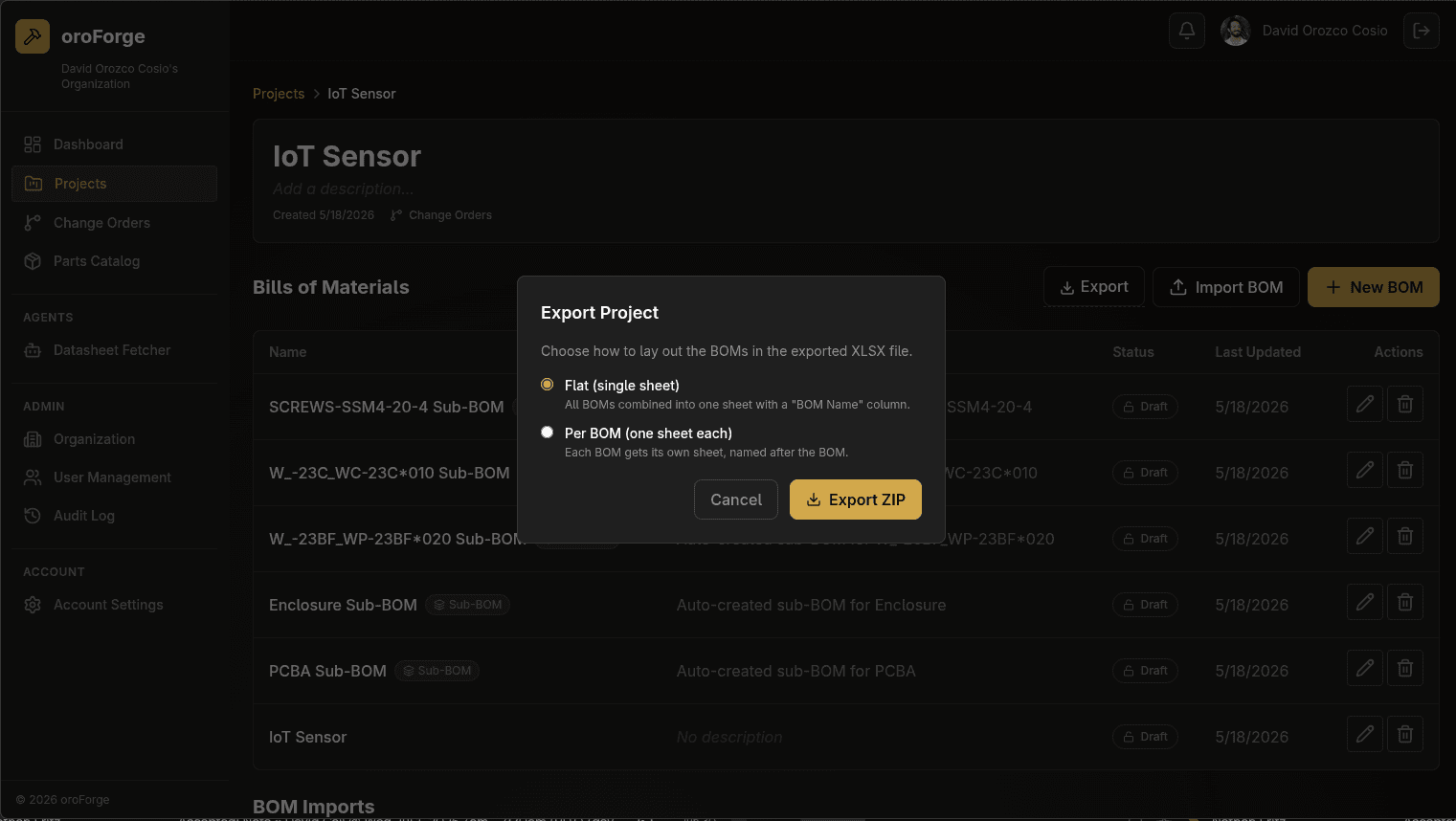
Export a single BOM as a CSV or a ZIP directly from the BOM view. Need the whole project? Export every BOM at once as an XLSX file: choose one combined sheet with a BOM Name column or one sheet per BOM, packaged into a ZIP. Your contract manufacturer gets one current, complete file instead of a FrankenZip stitched together at the last minute.
Or skip the export step entirely: add your CM as a Viewer on the project so they can access the current BOM directly, and every download is logged with who pulled it and when. No more digging through email to confirm they have the right version.
At a glance
- Multiple BOMs per project, organized however fits your product
- Sub-BOMs auto-created and nested on import
- Inline-editable quantities, notes, and per-line file attachments
- Automatic cost rollup across the full BOM
- Full, dated revision snapshots with one-click revert
- BOM locking as a lightweight step before formal ECOs
- Per-action activity log: edits, revisions, locks, and unlocks
- CSV, ZIP, and multi-sheet XLSX exports at the BOM or project level
- CM Viewer access with per-download tracking
Frequently asked questions
Can a single project have more than one BOM?
Yes. A project can hold as many BOMs as your product needs: a top-level assembly BOM plus any number of sub-BOMs for subassemblies, organized however makes sense for your product. Most electromechanical products end up with a top-level BOM plus dedicated sub-BOMs for things like the PCBA and the enclosure.
Does oroForge automatically create sub-BOMs for subassemblies?
Yes. When you import a BOM, an AI review step nests subassemblies into their own sub-BOMs instead of leaving everything as flat line items. STEP files often already carry sub-assembly structure from your CAD tool, and oroForge reads that structure directly rather than asking you to redefine it by hand.
What file types can I import into oroForge?
oroForge accepts spreadsheets in multiple formats, collections of component datasheets, and STEP files; bundle them together in a ZIP or upload them one at a time. You don't need to pre-clean everything into a single spreadsheet before importing.
Can I go back to a previous BOM revision?
Yes. Every time you save a revision, oroForge keeps a full, dated snapshot of that BOM, not just a change log. You can open any past revision and revert to it in one click.
What's the difference between locking a BOM and starting a formal ECO?
Locking a BOM prevents anyone from making changes to it: a lightweight way for an engineer or technical PM to freeze a BOM without going through formal engineering change order review. It's a deliberate step before ECO enforcement, not a replacement for it; locking or unlocking a BOM is itself recorded in the activity log.
Can I export a BOM to hand off to a contract manufacturer?
Yes. You can export a single BOM as a CSV or a ZIP, or export an entire project's BOMs at once as an XLSX file: choose either one combined sheet with a BOM Name column or one sheet per BOM, packaged into a ZIP.
How do I make sure my contract manufacturer has the right BOM?
Add your CM as a Viewer on the project so they can access the current BOM directly instead of waiting on an emailed file. Every download is logged with who pulled it and when, so you know exactly which version they have without digging through an email thread to confirm it.
Related reading:
Try BOM management built for hardware startups
Free plan available. Team plan at $50/month for 10 seats. No sales call required.
No credit card required · No implementation consultant